
Background
North Meridian Retail Group, a multichannel retailer growing double digits in e-commerce, was stuck reporting on yesterday's numbers today — their legacy Azure SQL warehouse was built for fast, reliable transactions, not for answering business questions, forcing analysts to write five-plus table joins just to calculate basic revenue. In this project, I designed and built a Microsoft Fabric Lakehouse solution using the Medallion architecture to bridge that gap: a Bronze layer for faithful, replayable ingestion from Azure SQL and CSV sources, a Silver layer that joins and cleans the data into a single trusted contract, and a Gold layer that reshapes everything into a star schema with pre-aggregated sales facts, ready for fast, self-service reporting in Power BI — all without touching the live point-of-sale system.
Problem
-
Reporting blind spot of 24–48 hours: Leadership was making decisions on stale data, with no way to see yesterday's sales in real time.
-
80% of analyst time lost to busywork: Nearly all analytics capacity went into manually constructing SQL queries, leaving only 20% for actual insight generation.
-
Shadow IT and version drift: Business logic, like regional mappings, lived in an uncontrolled spreadsheet on a single analyst's desktop, causing different teams to report conflicting numbers.
-
No clear ownership: When reports broke, IT blamed manual CSV uploads and Analytics blamed database performance, so nothing ever got fixed.
-
Estimated $1.2M–$1.8M in annual lost margin, driven by delayed pricing decisions on fast-moving inventory.
Solution

Set up the Fabric workspace with a clear, numbered structure — a metadata notebook, separate pipelines for Orders, Sales, and Customer/Product data, and two transformation notebooks (Bronze to Silver, Silver to Gold) — making the whole pipeline easy to follow and maintain.

-
Created a dedicated schema (CS06) in the Lakehouse to keep all this project's tables organized and separate from other work.
-
Built a control table (OrdersConfigTable) to hold the instructions for each data load — things like which table to pull from, what filter to apply, where the data should land, and whether that load is turned on or off.
-
Loaded four rows into the control table, each one slicing the Orders data into a different OrderID range (like 70000–71000, 71001–72000, and so on), so the full dataset could be pulled in manageable chunks instead of one giant query.
-
Queried the control table to confirm all four rows were set up correctly before using them to drive the actual data pipeline.

Built the Orders pipeline using a Lookup activity to read the config table, feeding those rows into a ForEach loop that runs a Copy activity once per row — so each OrderID range gets copied automatically without hardcoding four separate pipelines.

Configured the ForEach loop to run through every row returned by the Lookup step (using the @activity('Lookup_Config_Orders').output.value expression), with sequential processing turned on so each OrderID range copies one at a time in order.


-
Set the Copy activity's source to dynamically run whichever SQL query came from the current row (@item().FilterQuery), pulling directly from the Azure SQL database instead of hardcoding a fixed query.
-
Set the destination table name dynamically too (@item().DestinationTable), with the data appended into the Lakehouse — so all four OrderID batches land in the right table automatically, without manual setup for each one.

Built a second control table (SalesConfigTable), similar to the one used for Orders, to drive the Sales data pipeline in the same metadata-driven way — storing the source table, filter logic, destination, and an on/off flag for each load.

Loaded four rows into the SalesConfigTable, each one slicing the full Sales table into a 1,000-row SalesID range (50000–51000, 51001–52000, and so on), so the entire dataset could be pulled in manageable batches instead of one large query.

Queried the SalesConfigTable to verify all four batch definitions were inserted correctly before wiring them into the Sales pipeline.

Built the Sales pipeline using the same Lookup-and-ForEach pattern as Orders — reading the SalesConfigTable and looping through each batch to run a Copy activity automatically, keeping the pipeline design consistent and reusable across both data sources.

Built a separate pipeline with two simple Copy activities to bring in the Customers and Products tables in full — since these are small reference tables, they don't need the batching logic used for the larger Sales and Orders data.
Bronze-to-Silver Codes

Started the Bronze-to-Silver notebook by importing PySpark's SQL functions library, which provides the building blocks (joins, string operations, rounding, and more) needed to clean and transform the raw data in the next steps.

Loaded all four Bronze tables (Customers, Orders, Products, and Sales) into the notebook as dataframes and previewed each one, setting up the raw source data needed for the upcoming Silver transformations.
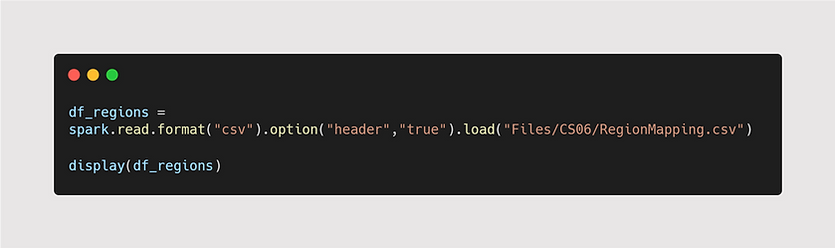
Loaded the RegionMapping CSV file directly from the Lakehouse's file storage and previewed it — bringing the region-to-state mapping into the pipeline as a first-class, governed dataset instead of leaving it as a manual spreadsheet on someone's desktop.

Created a dedicated Silver schema (CS06Silver) in the Lakehouse to keep the cleaned, transformed tables clearly separated from the raw Bronze data.

Built the Silver_Customers table by combining first and last names into one FullName field, joining in the region mapping so each customer shows their region directly, and saving only the clean, relevant columns — eliminating the need for anyone to manually look up regions later.

Created the Silver_Products table by rounding UnitPrice to 2-decimal places for clean, consistent pricing data, then saved it as a proper Delta table ready for use in later calculations.

Assembled the Silver_Sales table by joining Sales with Products to pull in pricing, calculating TotalSalesAmount by multiplying quantity and unit price, and joining in Orders data — bringing everything needed for revenue reporting into one clean, query-ready table.
Silver-to-Gold Codes

Started the Silver-to-Gold notebook by pulling the cleaned Silver_Customers table back into a dataframe, ready to be transformed in the Gold layer.

Created Gold_Dim_Customers table by generating a unique surrogate key (CustomerKey) for each customer using monotonically_increasing_id(), then saved a clean set of columns as the final dimension table that Power BI reports will join against.

Pulled the cleaned Silver_Products table back into the notebook, ready to be turned into the final Gold dimension table next.

Created the Gold Dim_Products table by generating a surrogate key (ProductKey) for each product and saving a clean set of columns, completing the second dimension table for the star schema.

Loaded the Silver_Sales table into the notebook to begin building the Date dimension, which will let reports break down sales by day, quarter, and year.

Found the earliest sales date and latest ship date in the data, then generated a full list of every date in between — giving the Date dimension complete calendar coverage instead of only the dates that happen to appear in transactions.

Enriched the date list into a full Gold Dim_Date table by adding a wide set of calendar attributes — year, quarter, month name, day name, weekend flags, fiscal year and quarter, and more — giving Power BI reports everything needed for flexible time-based filtering and trend analysis without extra calculations.

Saved the completed Gold_Dim_Date table as a permanent Delta table in the Gold layer, finishing the third and final dimension table for the star schema.

Created the Fact_Sales table by linking each sale to its matching DateKey, CustomerKey, and ProductKey, then grouped the data by date, customer, product, and order status — summing up total sales amount, quantity, and order count for each combination, so the final table is compact, pre-aggregated, and fast for Power BI to read.

Saved the Fact_Sales table to the Gold layer, completing the full star schema — three dimension tables and one fact table — ready to be connected to Power BI.

Connected all four Gold tables in Power BI as a proper star schema — Fact_Sales sits at the center, linked one-to-many to Dim_Date, Dim_Products, and Dim_Customers through their surrogate keys, giving the model a clean, high-performance structure ready for reporting.

Built an interactive Power BI report on top of the Gold star schema, giving users year, quarter, category, and region filters, a monthly sales trend line, a product category breakdown table, and an order status donut chart — turning the pipeline's output into a dashboard business users can actually explore themselves.
Business Impact
-
From a 24–48 hour reporting delay to same-day, self-service insights — business teams can now view up-to-date sales trends and top products directly in Power BI, without waiting on manual SQL queries.
-
Eliminated the five-plus join problem — the pre-built Gold star schema means analysts get straightforward answers to questions like "what's my revenue by region" without writing complex queries themselves.
-
Regional data brought under governance — the RegionMapping CSV, once a single analyst's desktop file causing conflicting numbers, is now a version-controlled, auditable part of the pipeline that every report pulls from consistently.
-
Reliable, repeatable daily loads — the metadata-driven, watermark-based design means the pipeline can be re-run safely without creating duplicate records, and new data flows in automatically every day.
-
Freed up analyst time for actual analysis — by removing the manual work of building queries and reconciling numbers, the platform gives the analytics team back the time previously lost to data prep, so they can focus on insights instead of plumbing.